File
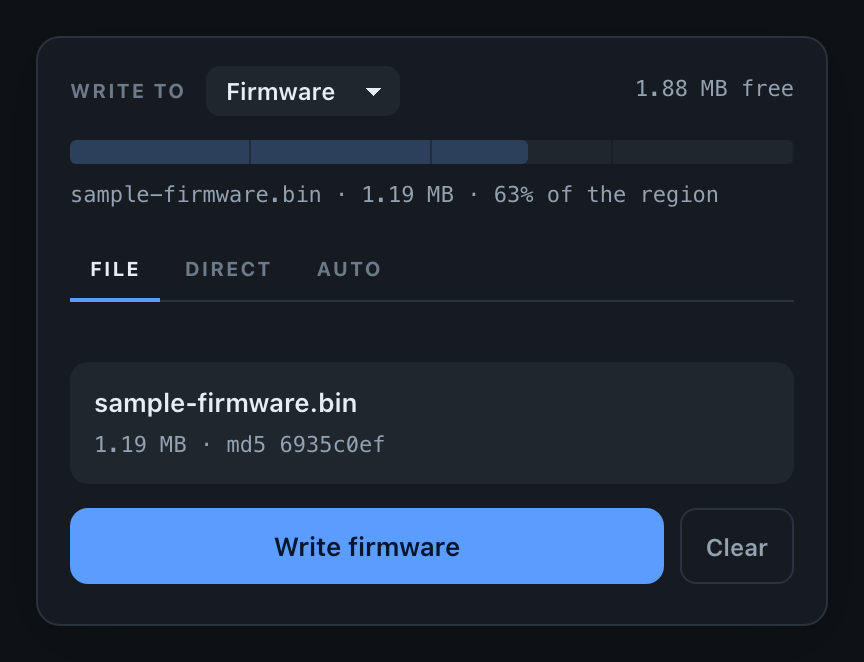
The mode everything else is measured against: you have a .bin on your
computer, and you want it on the device. Drop it into the portal, confirm, and
watch it land.
Available in ElegantOTA Lite and Pro. It needs no configuration - three lines of setup and the portal is there.
Writing a build
The file is the raw .bin your build produces - firmware.bin for ESP32 and
RP2040/RP2350, or the .bin next to your sketch in the Arduino IDE’s build
output. Not the .uf2, and not a zip.
Open http://<device-ip>/update, stay on the File tab, and either drag a
.bin onto the dropzone or click to choose one.
Nothing is written yet. The portal first stages the file: it reads it, works out its MD5 digest, and measures it against the room the device actually has. Only then does Write firmware become available.
That pause is deliberate. An update is the one operation where being wrong is expensive, so the portal tells you what it is about to do before it does it.
The capacity strip
The bar under the header is the target region drawn to scale, and it is the reason a build that cannot fit is caught before a single byte moves:
1.42 MB will not fit the 1.19 MB regionThe Write button stays disabled and nothing is touched. Left alone, the strip shows how much of the region the build currently running occupies, which is a useful thing to know before you go looking for space.
Choosing what to overwrite
The Write to selector at the top picks between the firmware and the filesystem image. The capacity readout follows it, because the two regions are different sizes.
Filesystem writes replace the LittleFS or SPIFFS image wholesale - every file on the device goes with it.
Verification
The portal computes the file’s MD5 digest in your browser and hands it to the device before the transfer starts. The device compares it against what actually landed in flash, and rejects the update if they differ.
A truncated upload, a flaky Wi-Fi link or a corrupted file is therefore refused rather than installed. The device stays on the build it was running.
What happens on the wire
Two requests, both behind whatever authentication you have configured:
| Request | Purpose |
|---|---|
GET /ota/start?mode=fr&hash=<md5> | Opens the flash region and records the expected digest |
POST /ota/upload | The file itself, as multipart/form-data |
mode is fr for firmware or fs for the filesystem image. If the digest is
malformed the device refuses before opening anything.
Once the write succeeds the device reboots into the new build, unless you have turned that off with auto reboot.
From your own code
The callbacks fire for this mode as they do for the others:
ElegantOTA.onStart([]() {
  Serial.println("An update is starting");
});

ElegantOTA.onProgress([](size_t current, size_t final) {
  Serial.printf("%u / %u bytes\n", current, final);
});

ElegantOTA.onEnd([](bool success) {
  Serial.println(success ? "Installed" : "Failed");
});
In Pro, ElegantOTA.source() reports OTA_SOURCE_UPLOAD here, which is how
you tell a hand-uploaded build from one the device fetched for itself.
Turning it off
All three modes are enabled by default. In Pro you can take this one away, so the portal offers only the modes you want:
// No uploading a file from the browser
ElegantOTA.setFileMode(false);
The File tab disappears from the portal and /ota/start refuses, whatever
sends it. If every mode is turned off, the portal says so rather than showing
an empty card.
setFileMode() decides whether a build may be uploaded from the browser.
That is a different question from
setFilesystemMode(), which decides
whether the filesystem image may be overwritten. The names are close; the
things they control are not.
if (ElegantOTA.checkFileMode() == false) {
    Serial.println("Uploads from the portal are disabled");
}
When you want the other modes
Writing a file by hand is the right answer while you are developing, and the wrong one for a device on a roof. ElegantOTA Pro adds two modes that do not need anybody at the portal:
- Direct Download - paste a URL and the device fetches the firmware itself
- Auto - the device polls a manifest on a schedule and installs what it finds
In Lite both appear in the portal as locked, so you can see what they do.