
Auto Update
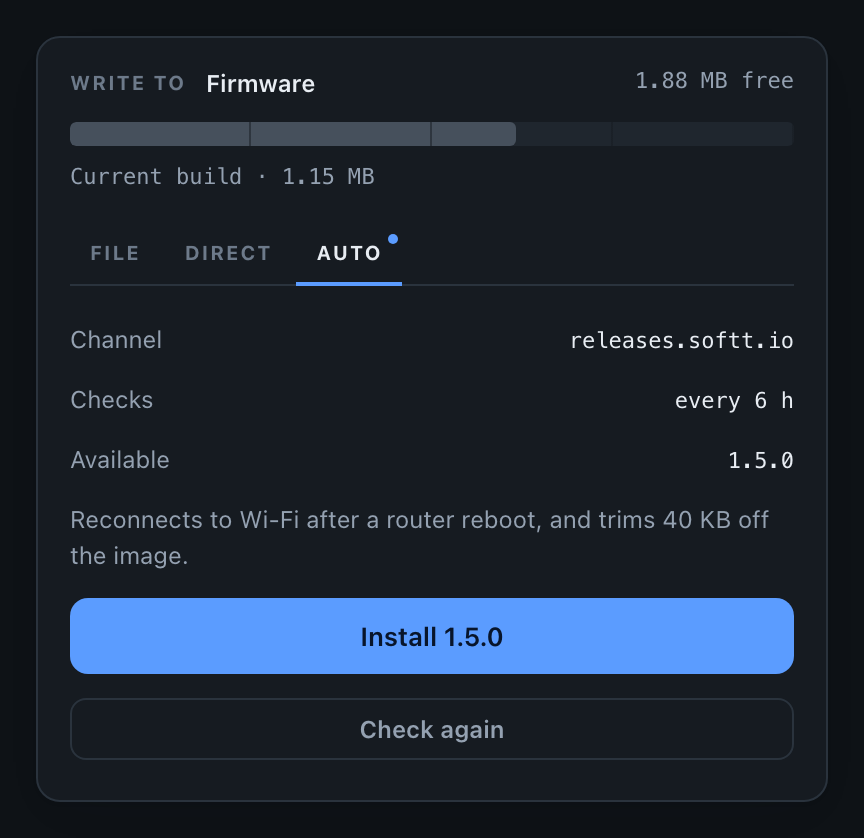
In Auto mode the device looks after itself. You compile in an update channel - a URL pointing at a small JSON manifest describing the latest release. The device fetches it on a schedule, compares the advertised version against its own, and can install what it finds - without anyone opening the portal.
This is the difference between updating devices you can reach and updating a fleet you cannot.
The manifest
Host a file like this anywhere the device can reach over HTTP or HTTPS - an S3 bucket, a GitHub release asset, your own server:
{
  "version": "1.2.0",
  "url": "https://example.com/firmware/my-device-1.2.0.bin",
  "md5": "6f5902ac237024bdd0c176cb93063dc4",
  "notes": "Reconnects to Wi-Fi after a router reboot"
}| Field | Required | Meaning |
|---|---|---|
version | yes | Compared against setFWVersion() |
url | yes | Where the .bin lives |
md5 | no | Verified against what lands in flash |
notes | no | One line shown in the portal next to the offered version |
Unknown fields are ignored, so you can keep your own bookkeeping in the same file.
An update channel carries firmware. There is no field selecting a target, because a filesystem image has no version of its own for the device to compare against - push one with File or Direct Download, where you choose the target yourself.
Include md5 whenever you can. It is the device’s only way to know that what it wrote is what you published.
Setting it up
Tell the device what it is running
Version comparison only works if the device knows its own version.
ElegantOTA.setFWVersion("1.0.0");Point it at the manifest
ElegantOTA.setUpdateURL("https://example.com/firmware/latest.json");Choose how often to look
ElegantOTA.setCheckInterval(6 * 60 * 60 * 1000UL); // every 6 hoursPass 0, or leave this out, and the device only checks when you ask it to or when someone presses Check for updates in the portal.
Decide who presses the button
ElegantOTA.setAutoInstall(true); // install as soon as something newer appearsWith setAutoInstall(false) - the default - a check that finds a newer build simply records it. The portal shows an Install button, and your code is free to decide when.
How versions are compared
The numeric parts of the version are compared field by field, so 1.10.0 correctly beats 1.9.4. A leading v is ignored. A pre-release suffix after a hyphen sorts below the same version without one.
| Running | Manifest says | Update offered? |
|---|---|---|
1.0.0 | 1.0.1 | yes |
1.9.4 | 1.10.0 | yes |
1.2.0 | v1.2.0 | no - same version |
1.2.3 | 1.2 | no |
1.0.0-rc1 | 1.0.0 | yes - a release beats its own candidate |
1.0.0 | 1.0.0-rc1 | no |
Versions with no digits at all - build hashes, code names - count as newer whenever they simply differ from what is running.
Reacting to a new build
onUpdateAvailable fires whenever a check finds something newer. This is where you decide what a good moment looks like for your product: a machine that is idle, a battery that is charged, a user who has agreed.
void onUpdateAvailable(const char* version, const char* notes) {
  Serial.printf("Version %s is available\n", version);
  if (strlen(notes)) Serial.println(notes);

  if (machineIsIdle()) {
    ElegantOTA.installUpdate();
  }
}

void setup() {
  // ...
  ElegantOTA.begin(&server);
  ElegantOTA.onUpdateAvailable(onUpdateAvailable);
}
From then on the ordinary callbacks take over - onStart, onProgress, onEnd - and ElegantOTA.source() reports OTA_SOURCE_CHANNEL.
Checking on demand
setCheckInterval() starts its clock the moment you call it, so the first scheduled check happens one interval later. Most projects want one at boot as well:
ElegantOTA.begin(&server);
ElegantOTA.checkForUpdate();    // ask once, now
Both checkForUpdate() and installUpdate() queue work and return straight away. The actual fetching happens inside ElegantOTA.loop(), so make sure that is being called.
Reference
void setUpdateURL(const char * url);        // the manifest URL
const char * getUpdateURL();

void setCheckInterval(uint32_t ms);         // 0 disables scheduled checks
void setAutoInstall(bool enable);           // install without being asked
bool checkAutoInstall();

bool checkForUpdate();                      // queue a check now
bool installUpdate();                       // install what the last check found

bool updateAvailable();                     // is something waiting?
const char * availableVersion();            // its version, or ""
const char * availableNotes();              // its notes, or ""

void onUpdateAvailable(std::function<void(const char * version,
                                          const char * notes)> callable);
Turning it off
All three modes are enabled by default. Turning this one off stops scheduled
checks, removes the Auto tab from the portal, and makes
checkForUpdate() and installUpdate() refuse:
ElegantOTA.setAutoMode(false);Useful for pausing automatic updates while something important is running, and turning them back on afterwards:
ElegantOTA.setAutoMode(!machineIsBusy());This is separate from simply not configuring a channel. Without
setUpdateURL() there is nothing to check; with setAutoMode(false) there is
a channel that is deliberately not being checked.
if (ElegantOTA.checkAutoMode() == false) {
    Serial.println("Automatic updates are paused");
}
HTTPS
The manifest and the firmware are fetched by the same client, so setCACert() covers both. See Direct Download for how to pin a root certificate - and why you should.
An update channel is a standing instruction to run whatever that URL offers. Treat the host serving your manifest as part of your firmware’s trust boundary: pin a certificate, and make sure nobody else can write to that bucket.
The other modes
- File - write a
.binfrom your computer, available in Lite and Pro - Direct Download - hand the device a URL and let it fetch that one build